

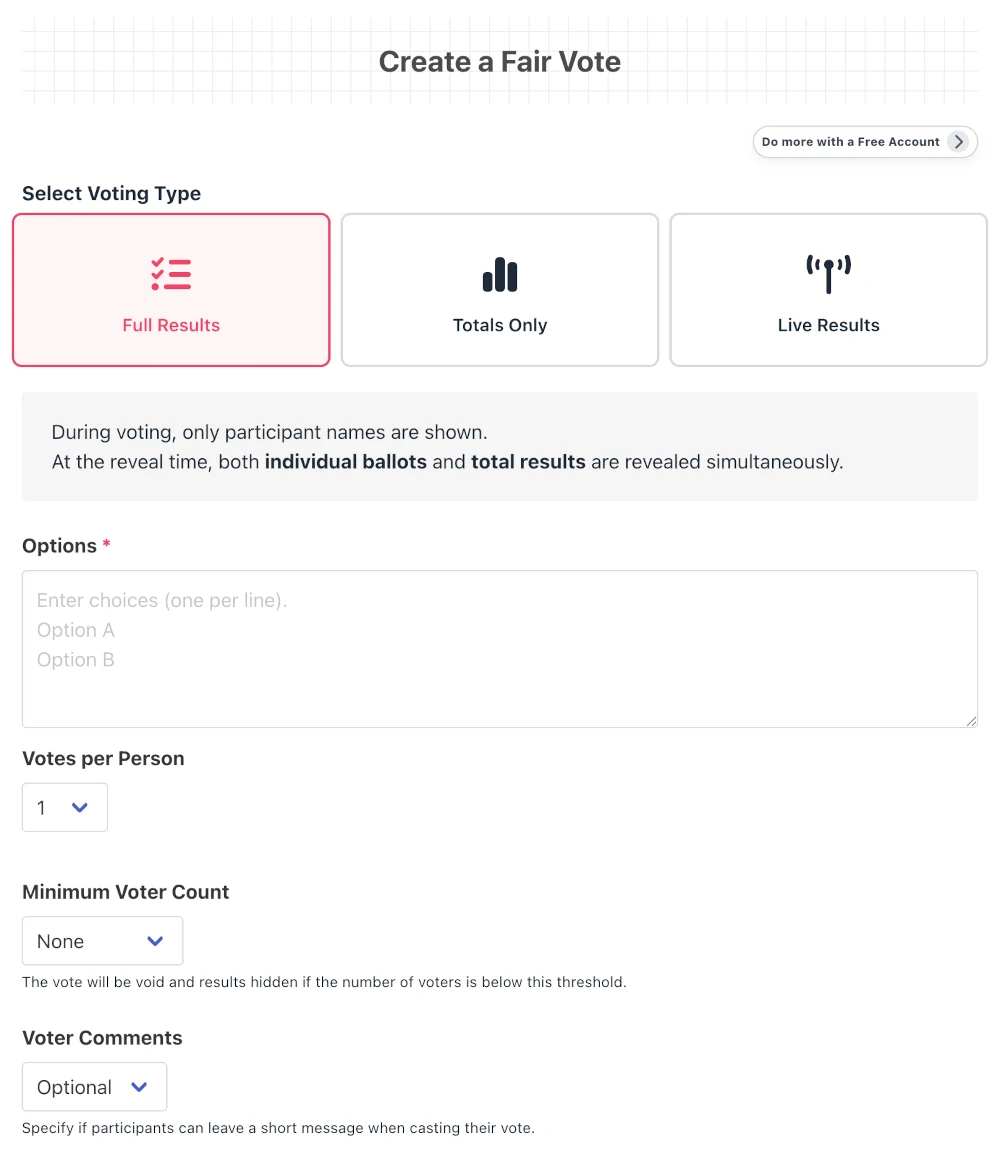
Voting Type
Choose the publication scope and timing of results from the three options below to suit your purpose.
Full Results
Individual ballots and total results remain hidden until the scheduled time.
Totals Only
Only the total counts are revealed at the scheduled time. Ballots stay anonymous.
Live Results
Individual ballots and total results are updated in real-time as votes come in.
Setting Options and Rules
Options: Enter the candidates to be voted on, one per line.
Votes per Person / Max per Option: You can set how many votes one person can cast (e.g., 3 votes), and how many votes they can concentrate on a single option (e.g., up to 2 votes for the same option).
Minimum Voter Count: If the set number of voters is not reached, results will not be published. Prevents the will of a minority from becoming the overall result.
Voter Comments: Choose whether to have voters write reasons for their choices (Optional, Required, or Disabled).
In the event of a tie: You can choose how to handle a tie in the voting results from "Keep tied" or "Break ties randomly". If you set it to "Break ties randomly", ties will be broken automatically by a random draw among the tied candidates, and the rankings will be displayed when the results are confirmed.
Creating a ROOM
Title & Description: Convey the voting theme and rules to participants. This is the first information seen when sharing the URL.
Reveal Time: Set a future date and time. At this time, voting will automatically close, and results will be confirmed and published.
Visibility Settings: Choose whether to restrict access to a specific group using "Unlisted (Link Only)" or configure advanced security settings.
Business Member Exclusive Features
- IP Restriction: Allow access only from specific IP addresses, such as your office.
- Access Password: Require a password upon access to prevent leaks to non-stakeholders.
- Email Notification: Send notification emails to the organizer right before or when the vote is confirmed.
Fairness Points (Ensuring Transparency)
The Voting Room maintains absolute fairness through the following mechanisms:
- Even the Creator Cannot Check: Until the announcement time, even the organizer (ROOM creator) cannot know the progress or results (excluding the Immediate Publication type). The exact same rules apply to the organizer regarding the scope of published individual voting results. No fairness-related information is made available exclusively to the organizer.
- Prior Sharing Rule: To ensure fairness, be sure to share the URL with all stakeholders before voting begins.
- Restrictions on Changes & Deletions: Once created, voting conditions or already cast votes cannot be manipulated later.
Detail Screen Features
Now Accepting Votes
- Copy: Bulk copy the URL, title, and announcement time to share with participants.
- Vote: Enter your name (or vote anonymously) and comment, distribute your votes, and confirm.
- Change Vote: As long as it's before the deadline, you can change your own submitted vote.
- Countdown: The remaining time until the deadline is displayed in real-time.
Voting Results and Data Utilization
- Aggregation Graph: Vote counts are shown in an intuitive graph.
- Transpose Rows/Columns: Swap the vertical and horizontal axes of the aggregation table to analyze data from different perspectives.
- CSV Download (Business Member): Save detailed voting data in CSV format to utilize for reporting and aggregation.
Management Features
Admin Password and Management
Operations are possible using the "Admin Password" set when creating as a guest, or by logging in as a member. Members can manage simply by logging in, so no password entry is required.
Edit / Delete ROOM: You can modify the title and description, or delete unnecessary ROOMs. *Voting rules (candidates or vote counts) cannot be changed.
Duplicate ROOM (Business Member): You can create a new vote carrying over the same candidate settings. Useful for regular meetings.
Archive Settings (Business Member): You can restrict general access while keeping the results as a history.